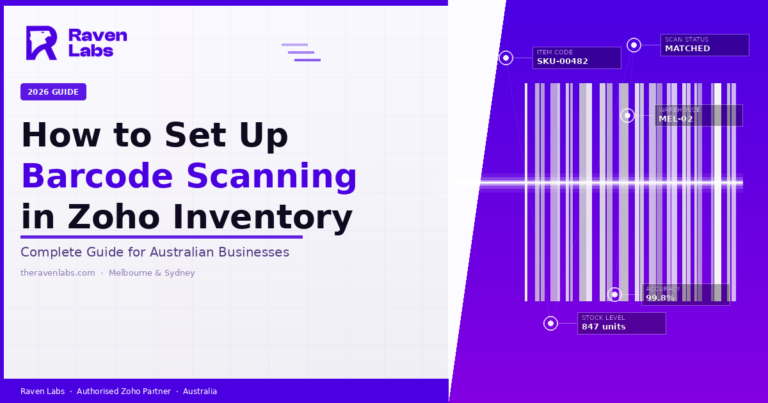
How to Set Up Barcode Scanning in Zoho Inventory: Complete Guide for Australian Businesses (2026)

Your warehouse team is manually typing SKUs into Zoho Inventory. Every order, every stocktake, every goods receipt someone is typing, someone is correcting, and someone is losing time your business can’t afford to lose. Barcode scanning in Zoho Inventory eliminates that entirely. One scan replaces every keystroke, updates stock in real time, and removes the human error that quietly erodes your inventory accuracy.

This guide walks you through exactly how to set up barcode scanning in Zoho Inventory from configuring your items and scanning on the web app, to printing barcode labels and using a Bluetooth scanner in your warehouse. Whether you’re running a single Melbourne warehouse or a multi-location operation across Australia, this is the setup process Raven Labs uses for every Zoho Inventory implementation.

Why Barcode Scanning in Zoho Inventory Matters for Australian Businesses

Manual stock management has a ceiling. At a certain order volume usually somewhere between 50 and 200 orders per day manual data entry stops being slow and starts being a liability. Stock discrepancies compound. Picking errors increase. Staff spend half their shift correcting data instead of moving product.

Barcode scanning in Zoho Inventory solves three specific problems:

Speed

A barcode scan takes under a second. Manual SKU entry takes 5–10 seconds per line item, plus error correction time. For a business processing 100 orders daily with an average of 3 line items each, that is 50+ minutes reclaimed every single day.

Accuracy

Human transcription error rates sit at roughly 1 in every 300 keystrokes. At scale, that means wrong items shipped, stock counts that drift, and customer complaints. Barcode scanning eliminates transcription error at the point of input.

Real-time inventory

When every scan updates Zoho Inventory instantly, your stock levels are live. Your reorder points trigger on time. Your team stops overselling items that left the warehouse yesterday.

For Australian businesses in manufacturing, wholesale distribution, and retail with a warehouse component, barcode scanning is not an upgrade it is table stakes for running Zoho Inventory correctly.

What You Need Before Setting Up Barcode Scanning in Zoho Inventory

Before configuring the software, confirm you have the following in place:

  • A Zoho Inventory account: Any paid plan (Standard, Professional, Premium, or Enterprise) supports barcode scanning. The free plan supports basic web scanning.
  • Items with SKUs assigned: Your barcode must map to an item’s SKU field in Zoho Inventory. Setting SKUs up is Step 1 below.
  • A barcode scanner (recommended): USB barcode scanners, Bluetooth scanners (e.g. Zebra DS2208, Socket Mobile), or a smartphone camera all work.
  • Barcode labels on your products: If you need to generate and print labels, Zoho Inventory’s built-in barcode generator handles this (Step 4).
  • Mobile device (for warehouse scanning): The Zoho Inventory mobile app is available on iOS and Android. For dedicated warehouse scanning, Zebra Android scanners are the most common enterprise setup in Australian warehouses.

Step 1 – Assign Barcodes to Items Using the SKU Field in Zoho Inventory

Zoho Inventory maps barcodes to items through the SKU (Stock Keeping Unit) field. Your barcode scanner reads a barcode and inputs that value as text Zoho matches that text to the corresponding SKU.

To set up barcodes for existing items:

1.  Navigate to Items in the left sidebar of Zoho Inventory.

2.  Click on the item you want to configure.

3.  Click Edit.

4.  In the SKU field, enter the barcode value printed on your product (e.g. the EAN-13 number, your internal Code 128 value, or any supported format).

5.  Click Save.

From this point, when that barcode is scanned anywhere in a Zoho Inventory transaction, Zoho will match it to this item automatically.

Important: Barcodes longer than 10 characters are required for scanning to work reliably in Zoho Inventory. Standard retail barcodes (EAN-13, UPC-A, Code 128, Code 39) all meet this requirement.

Step 2 – Enable and Use Barcode Scanning in the Zoho Inventory Web App

Once your items have SKUs matching their barcodes, scanning via the web app is plug-and-play with a USB scanner.

How it works:

1.  Open any transaction in Zoho Inventory Sales Order, Invoice, Purchase Order, Bills, or a Manual Journal entry involving items.

2.  Click into the Item Details column in the line items section.

3.  Place your cursor in the item search/input field.

4.  Scan the barcode with your USB or Bluetooth scanner.

5.  Zoho Inventory will automatically match the scanned value to the corresponding SKU and add the item to the transaction.

6.  Press Enter or click the item in the dropdown to confirm.

Your USB scanner acts as a keyboard input device it types the barcode number into whatever field your cursor is in, then sends a return character. No drivers, no configuration, no integration required.

Step 3 – Set Up Barcode Scanning on the Zoho Inventory Mobile App

The Zoho Inventory mobile app turns any iOS or Android device into a barcode scanner. For Australian warehouse operations where staff need to move freely through aisles, the mobile app is the most practical setup.

To scan via the mobile app:

1.  Open the Zoho Inventory mobile app on your iOS or Android device.

2.  Open or create a transaction (e.g. a Sales Order or a Manual Adjustment for stocktake).

3.  Tap Add Line Item.

4.  Tap Select Item.

5.  Tap the Barcode icon in the top-right corner of the item search screen.

6.  Point your device camera at the product barcode.

7.  The app scans the barcode, matches the SKU, and adds the item to your transaction.

For Zebra Android scanners (DS3678, TC-series, MC-series), install the Zoho Inventory app from the Google Play Store directly on the Zebra device. The physical scanner button triggers the laser in place of tapping the barcode icon giving your team a dedicated scanning button that works identically to a traditional warehouse scanner.

Serial number scanning: Zoho Inventory supports serial number tracking via barcode. In the item details screen, tap the serial number field and scan each unit individually. This is particularly useful for electronics, equipment, and high-value components where individual unit tracking is required.

Step 4 – Generate and Print Barcode Labels Directly in Zoho Inventory

If your products don’t already have barcodes, or if you need to relabel items with your internal SKU barcodes, Zoho Inventory includes a built-in barcode generator. No third-party tool required.

To generate barcode labels:

1.  Go to Items in the left sidebar.

2.  Select one or more items using the checkboxes.

3.  Click Print Barcode (or Print QR Code) from the action menu.

4.  Choose your barcode template — Zoho provides standard label sizes compatible with Avery and Dymo label stock.

5.  Select the field to encode — typically SKU, but you can also encode Item Name, Serial Number, or a custom field.

6.  Set the quantity of labels to print per item.

7.  Click Generate — Zoho creates a printable PDF.

8.  Print to any label printer (Dymo, Zebra label printer, or standard A4 label sheets).

Supported barcode formats in Zoho Inventory: EAN-13, UPC-A, Code 39, Code 128, ITF. QR codes are also supported — useful for items with long descriptions or where additional data needs to be encoded.

For high-volume label printing in Australian warehouses, Zebra thermal label printers (ZD420, ZD620) connected directly to a workstation running Zoho Inventory are the most reliable setup for uninterrupted label production.

Step 5 – Use Barcode Scanning for Stocktakes and Warehouse Operations

The highest-value use case for barcode scanning in Zoho Inventory is physical stocktakes. The traditional stocktake involves printed count sheets, manual tally marks, and a data entry session afterward. Barcode scanning replaces all of it.

To run a barcode-assisted stocktake in Zoho Inventory:

1.  Navigate to Inventory Adjustments (under the Inventory menu).

2.  Create a New Manual Adjustment.

3.  In the quantity adjustment table, use your scanner or mobile device to scan each item’s barcode as you count it.

4.  Adjust the quantity field to reflect the physical count.

5.  Save and confirm the adjustment Zoho updates your stock levels immediately.

For multi-location Australian operations (Melbourne distribution centre + Sydney retail store, for example), Zoho Inventory’s multi-warehouse feature lets you run simultaneous stocktakes per location, each updating independently.

Goods receipts via scanning: When receiving a purchase order, open the Receive Items screen against your PO, then scan each incoming item’s barcode. Zoho matches each scan to a PO line item, pre-fills the quantity received, and flags any discrepancies where the received barcode doesn’t match an expected item on the PO.

Recommended Barcode Scanners for Zoho Inventory in Australia

Not all scanners perform equally in Zoho Inventory environments. Based on implementations across Australian warehouses, here is what Raven Labs recommends:

For office and counter environments:

  • Honeywell Voyager 1202g (Bluetooth, cordless) reliable, fast 1D scanning for invoicing desks and receiving counters.
  • Symbol/Zebra DS2208 (USB) plug-and-play, no configuration, excellent for a fixed counter setup.

For warehouse floor operations:

  • Zebra TC52 or TC57 (Android mobile computer) purpose-built warehouse scanner running Android, compatible with the Zoho Inventory mobile app. IP65-rated for dust and water resistance.
  • ScanSKU (available from ScanSKU Australia) a purpose-built Zoho Inventory scanning app for Android that extends the native mobile app’s warehouse functionality.

For light-duty and occasional use:

  • Any smartphone (iOS or Android) running the Zoho Inventory app sufficient for stocktakes and small-volume receiving.

Australian buyers: barcode scanner hardware is available locally through Barcodes.com.au, Barcode Scanners Australia, and Track n Trace Australia, all of which stock Zebra and Honeywell equipment with local support.

Raven Labs has configured Zoho Inventory barcode scanning for manufacturers, wholesalers, and distributors across Melbourne and Sydney. If your team is still manually entering SKUs, we can fix that in a single day. Book a free Zoho Inventory audit at theravenlabs.com

Best Practices for Barcode Management in Zoho Inventory

1. Standardise your SKU format before you go live.

Decide on a consistent SKU format (e.g. CAT-SUBCAT-001) before assigning barcodes. Inconsistent SKU structures cause lookup failures and create cleanup work later. Raven Labs recommends defining your SKU taxonomy during the discovery phase of any Zoho Inventory implementation.

2. Use Code 128 as your default internal barcode format.

Code 128 is the most versatile 1D barcode format it encodes the full ASCII character set, handles variable length, and scans reliably on all hardware. Unless your supply chain requires a specific format (e.g. GS1-128 for retail), Code 128 is the right default for Australian warehouse operations.

3. Test scanning before warehouse rollout.

Before handing scanners to your team, test every item SKU in a real transaction. Common issues: SKUs with spaces that don’t match the barcode value, special characters that don’t encode correctly, and SKUs shorter than 10 characters that Zoho rejects.

4. Train your team on the mobile app workflow, not just the desktop.

Most barcode scanning errors happen because staff switch between the desktop and mobile app without understanding the differences. Run a one-hour training session focused specifically on the mobile scanning workflow for stocktakes and receiving.

5. Use QR codes for items with multiple tracked attributes.

If you need to encode item name, serial number, and batch number in a single scan, switch from 1D barcodes to QR codes. Zoho Inventory supports QR code scanning on mobile. This is particularly useful for pharmaceutical, electronics, and food distribution businesses operating in Australia under track-and-trace compliance requirements.

Frequently Asked Questions — Zoho Inventory Barcode Scanning

What barcode formats does Zoho Inventory support?

Zoho Inventory supports Code 39, Code 93, Code 128, EAN-8, EAN-13, ITF, UPC-A, UPC-E, PDF-417, and QR codes for both generation and scanning.

Can I use my smartphone camera as a barcode scanner in Zoho Inventory?

Yes. The Zoho Inventory mobile app (iOS and Android) includes a built-in camera barcode scanner. Open any transaction, tap the barcode icon in the item search field, and point your camera at the barcode. No separate app or hardware required for light-duty scanning.

Does barcode scanning work on the free Zoho Inventory plan?

Basic barcode scanning via the web app works on the free plan. Advanced features including multi-warehouse barcode operations, serial number scanning, and batch tracking require a paid plan (Standard and above).

What happens if a scanned barcode doesn’t match any item in Zoho Inventory?

Zoho will return no result in the item dropdown. This typically means the SKU field on the item doesn’t match the barcode value. Check that the SKU entered in Zoho exactly matches the barcode number, including leading zeros for EAN-13 codes.

Can I scan barcodes during a Zoho Inventory stocktake?

Yes. Use the Inventory Adjustments module on either the web app or mobile app. Scan each item’s barcode to add it to the adjustment, then update the counted quantity. This is the fastest way to run a physical stocktake without printed count sheets.

Does Zoho Inventory integrate with Zebra barcode scanners?

Yes. Zebra USB and Bluetooth scanners work via keyboard emulation (HID) on the web app no configuration needed. Zebra Android mobile computers (TC-series, MC-series) run the Zoho Inventory Android app directly. Zebra is the most widely deployed scanner brand in Zoho Inventory environments across Australian warehouses.

How long does it take to set up barcode scanning in Zoho Inventory?

For a business with existing items and a compatible USB scanner, basic barcode scanning can be operational within a single day. A full warehouse setup including label printing, mobile app configuration, and staff training typically takes 2–5 days depending on catalogue size and warehouse complexity.

Is Zoho Inventory barcode scanning suitable for Australian compliance requirements?

For GS1-compliant supply chains (common in Australian retail and food distribution), Zoho Inventory supports GS1-128 and EAN-13 barcode formats. Businesses with specific track-and-trace requirements under Australian regulatory frameworks should verify their specific compliance needs with their Zoho implementation partner before configuring barcode formats.

Ready to Set Up Barcode Scanning in Zoho Inventory? Raven Labs Can Help.

Setting up barcode scanning in Zoho Inventory is straightforward when your item data is clean, your SKUs are consistent, and you choose the right scanning hardware for your environment. When any of those three conditions isn’t met, the setup creates more problems than it solves.

Raven Labs is an authorised Zoho partner based in Melbourne, with operations in Sydney. We’ve configured Zoho Inventory barcode scanning for manufacturers, wholesale distributors, and multi-location retailers across Australia from single-warehouse setups to full Zoho One implementations with integrated barcode management across sales, warehouse, and accounting.

If you’re ready to eliminate manual SKU entry and get your inventory data accurate in real time, book a free Zoho Inventory audit with our team. We’ll review your current setup and show you exactly what’s possible.

Get in touch with Raven Labs and book a 30 mins consultation to discuss in detail.

Get a free audit report

Discover how we can empower your organization to move forward. Tell us what matters most to you, and we’ll personalize our approach to serve you better.